GTMS leverages an open-source software called [https://www.xflr5.tech/xflr5.htm XFLR5] for design and simulation of 2D Airfoils. Download the latest or most recommended version. Your computer will likely give you a warning that the software isn't safe. It is, just hit the more info button to allow it to run. Follow the steps below to create and analyze a two-dimensional airfoil.
GTMS leverages an open-source software called [https://www.xflr5.tech/xflr5.htm XFLR5] for design and simulation of 2D Airfoils. Download the latest or most recommended version. Your computer will likely give you a warning that the software isn't safe. It is, just hit the more info button to allow it to run. Follow the steps below to create and analyze a two-dimensional airfoil.
Line 9:
Line 9:
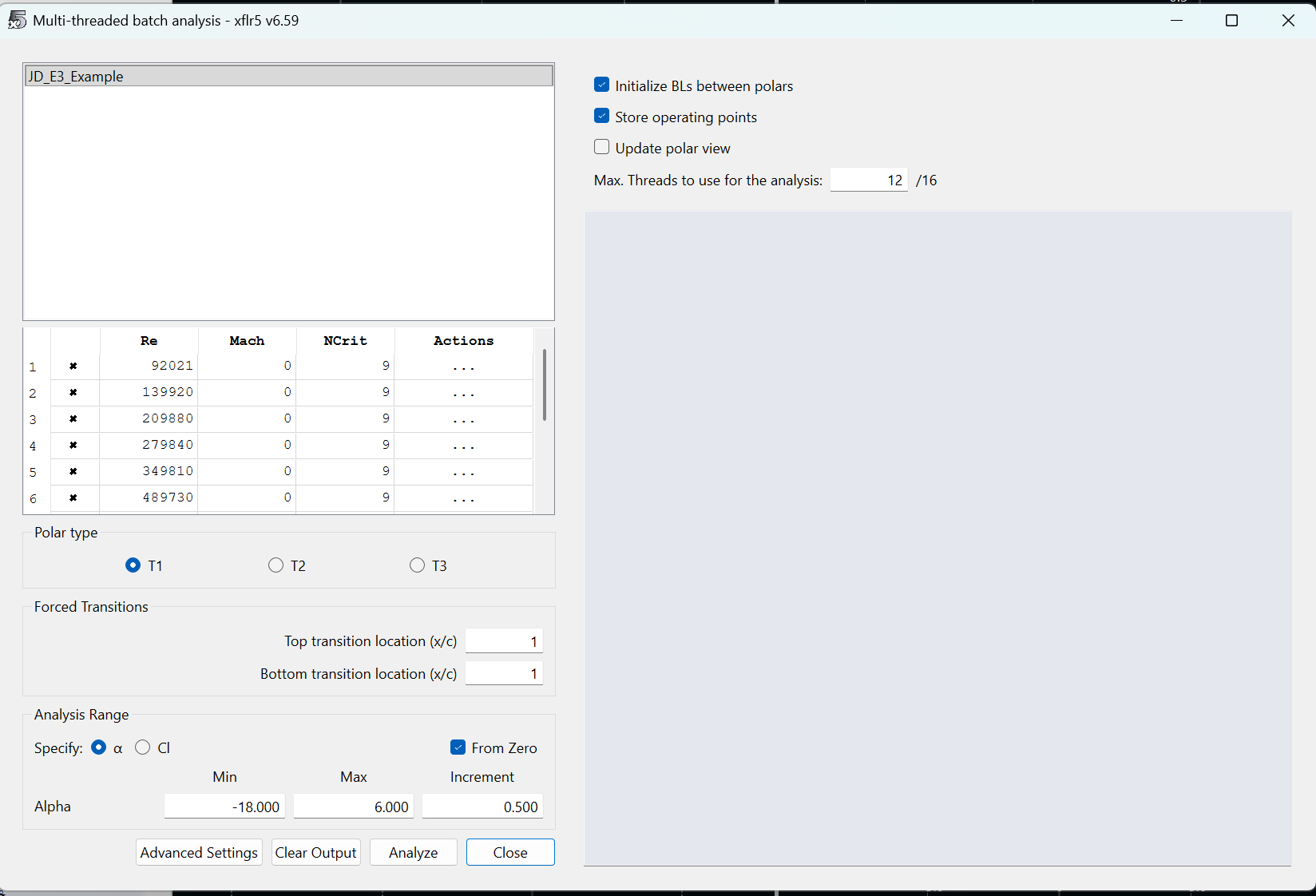
# Navigate to Analysis -> Batch Analysis. It may be a bit confusing for those less experienced from here. Batch analysis allows us to test our airfoil at multiple angles of attack and at multiple [[wikipedia:Reynolds_number|Reynolds Numbers]]. The UI will look like this: [[File:Xflr5 4.png|center|thumb|600x600px]]First, set Min Alpha to -18 and Max Alpha to 6. This defines the range of angles of attack we simulate. Change the increment to 0.500. For Reynolds Numbers, [https://www.omnicalculator.com/physics/reynolds-number calculate] a good range of numbers between 10 and 60 mph at sea level conditions. Assume a characteristic length of 1 m. Use the [https://www.digitaldutch.com/atmoscalc/ 1976 Standard Atmosphere Calculator] to determine dynamic viscosity and density at sea level. One of my personal favorite websites that one, love the little fishes they have at the top. Click the checkbox for Initialize BLs between polars and Store operating points. Change the number of threads such that your computer has four threads available. finally... HIT ANALYZE
# Navigate to Analysis -> Batch Analysis. It may be a bit confusing for those less experienced from here. Batch analysis allows us to test our airfoil at multiple angles of attack and at multiple [[wikipedia:Reynolds_number|Reynolds Numbers]]. The UI will look like this: [[File:Xflr5 4.png|center|thumb|600x600px]]First, set Min Alpha to -18 and Max Alpha to 6. This defines the range of angles of attack we simulate. Change the increment to 0.500. For Reynolds Numbers, [https://www.omnicalculator.com/physics/reynolds-number calculate] a good range of numbers between 10 and 60 mph at sea level conditions. Assume a characteristic length of 1 m. Use the [https://www.digitaldutch.com/atmoscalc/ 1976 Standard Atmosphere Calculator] to determine dynamic viscosity and density at sea level. One of my personal favorite websites that one, love the little fishes they have at the top. Click the checkbox for Initialize BLs between polars and Store operating points. Change the number of threads such that your computer has four threads available. finally... HIT ANALYZE
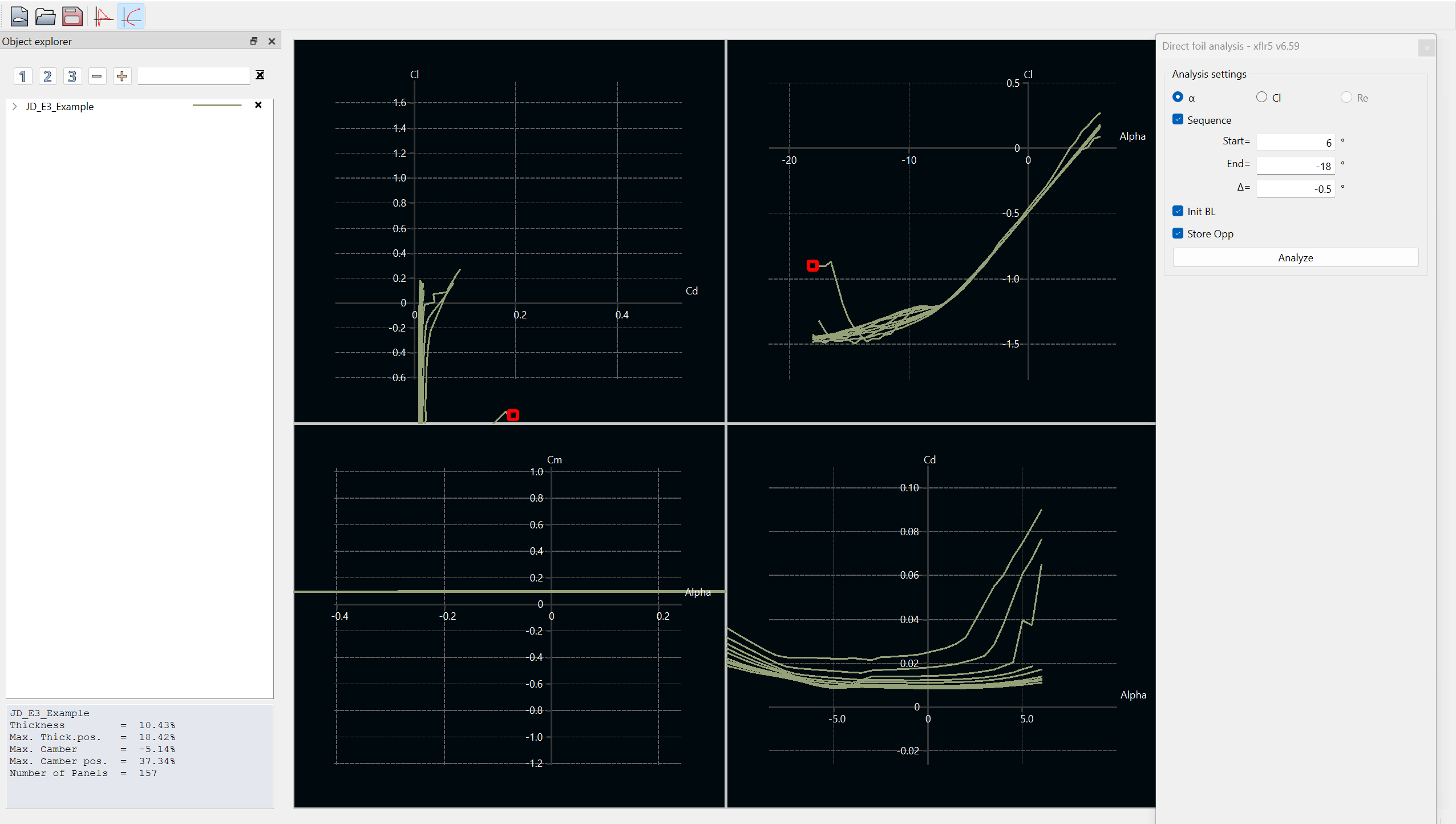
# Exit out of the batch analysis window. You should see the graphs populated with data like so: [[File:Xflr5 5.png|center|thumb|600x600px]]Now what? You just completed your first airfoil simulation! Click and drag the graphs to bring more data into view. Click the dropdown on the left hand side (in the screenshot, the row that says "JD_E3_Example". Clicking the x's will show or hide the data for a specific Reynolds Number of a specific angle of attack point.
# Exit out of the batch analysis window. You should see the graphs populated with data like so: [[File:Xflr5 5.png|center|thumb|600x600px]]Now what? You just completed your first airfoil simulation! Click and drag the graphs to bring more data into view. Click the dropdown on the left hand side (in the screenshot, the row that says "JD_E3_Example". Clicking the x's will show or hide the data for a specific Reynolds Number of a specific angle of attack point.
# SAVE YOUR PROJECT. I didn't, literally just as I was making the tutorial, and lost my progress.
==== ''Until I (Jack) finish this tutorial, some food for thought:'' ====
==== Check-in questions before moving to the next section: ====
* What is the general trend of Cl versus alpha? Linear? Exponential?
* What is the general trend of Cl versus alpha? Linear? Exponential?
** What is Cl or Cd anyway?
** What is Cl or Cd anyway?
Line 18:
Line 18:
* How do the trends differ for different Reynolds Numbers?
* How do the trends differ for different Reynolds Numbers?
* How can I improve airfoil lift? How can I reduce drag?
* How can I improve airfoil lift? How can I reduce drag?
== XFLR5 Export / Solidworks Import ==
Now that you've designed an airfoil and completed analysis on it, its time to take it to Solidworks. Follow the steps to obtain a generic sketch in Solidworks with your airfoil profile.
# Clone a local view of "Airfoil-.DAT-Inverter" from GitHub. This section will require you to create a [https://github.gatech.edu/ GitHub enterprise] account with your Gatech account information. Once this account is created, message a lead asking for GitHub access. They'll need to send you an invite to join the organization. Once you're on, here's the steps to make a local view:
## Open command prompt and navigate to a directory in which you want this Matlab tool (cd "C:\ahoosian45\Example_Folder\")
## Run the command "git clone <nowiki>https://github.com/username/repo.git</nowiki> subfolder-name", where the URL is the URL of the repository online
## You're good! If you want you can listen to more about using GitHub through [https://youtu.be/mJ-qvsxPHpY?si=YGBNlmLsTvS9nLyx this passive-aggressive video]!
# Open "dat_inverter_notebook.mlx" in Matlab. This is the main live script that will take the exported .dat file from XFLR5, scale the values, and convert to .txt which is readable by Solidworks.
# Lets go back to XFLR5. To export your spline, navigate to Splines -> Export Splines to File. Save the .dat file with the same name as the spline to the directiory "...Airfoil-.DAT-Inverter/input_airfoils"
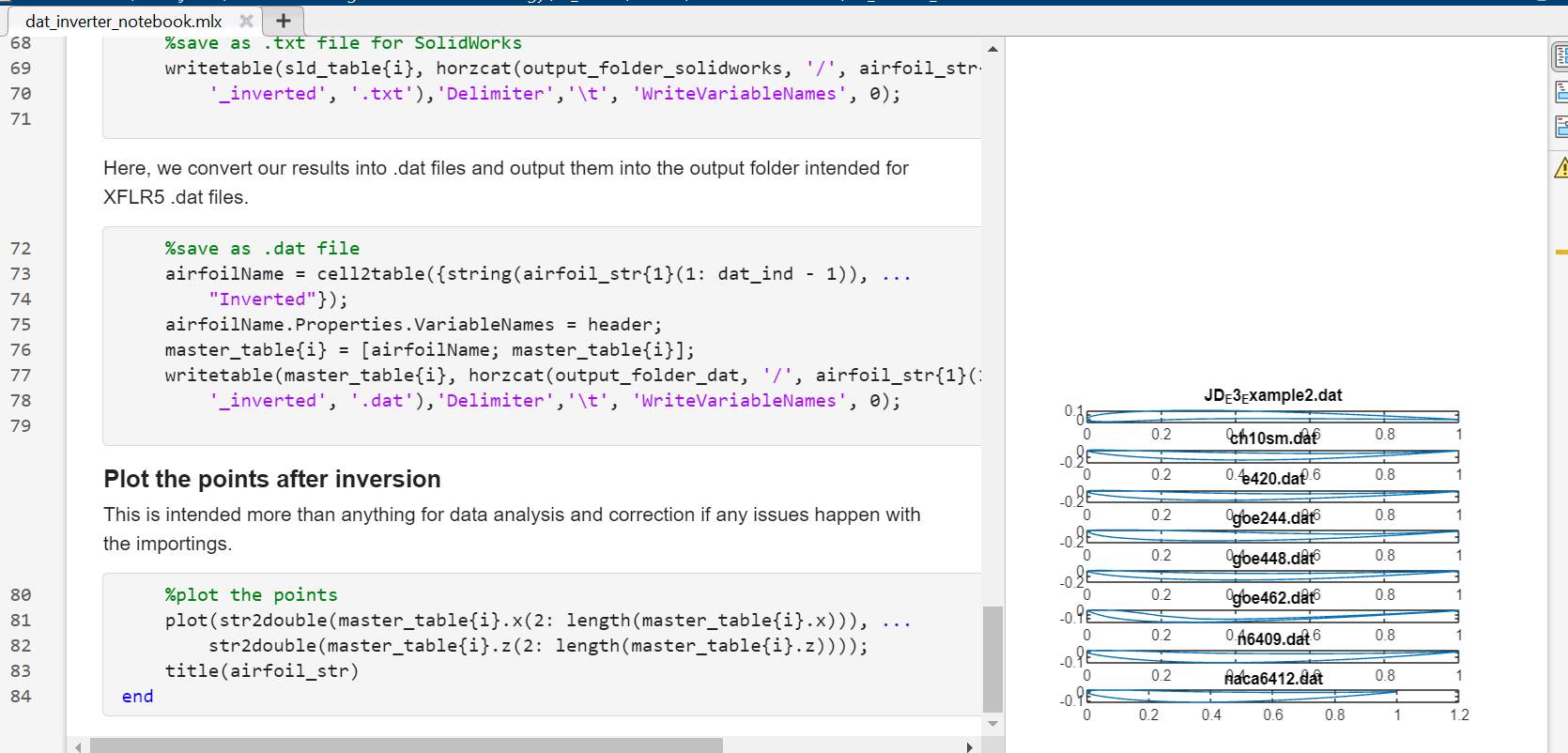
# [[File:Xflr5 6.png|center|thumb|600x600px]]Hit run on the entire "dat_inverter_notebook.mlx" script. At the end of the script, you'll see a bunch of graphs with some example airfoils and '''your new airfoil'''. If you don't see your airfoil, you did something wrong.
# '''Open Solidworks.''' If you haven't already, follow this [[Quickstart|onboarding document]] to setup the proper GTMS Solidworks Templates
# Create a new GTMS part
# Create a sketch on the
Revision as of 01:02, 16 October 2025
XFLR5
GTMS leverages an open-source software called XFLR5 for design and simulation of 2D Airfoils. Download the latest or most recommended version. Your computer will likely give you a warning that the software isn't safe. It is, just hit the more info button to allow it to run. Follow the steps below to create and analyze a two-dimensional airfoil.
Open XFLR5. You'll be met with a blank screen
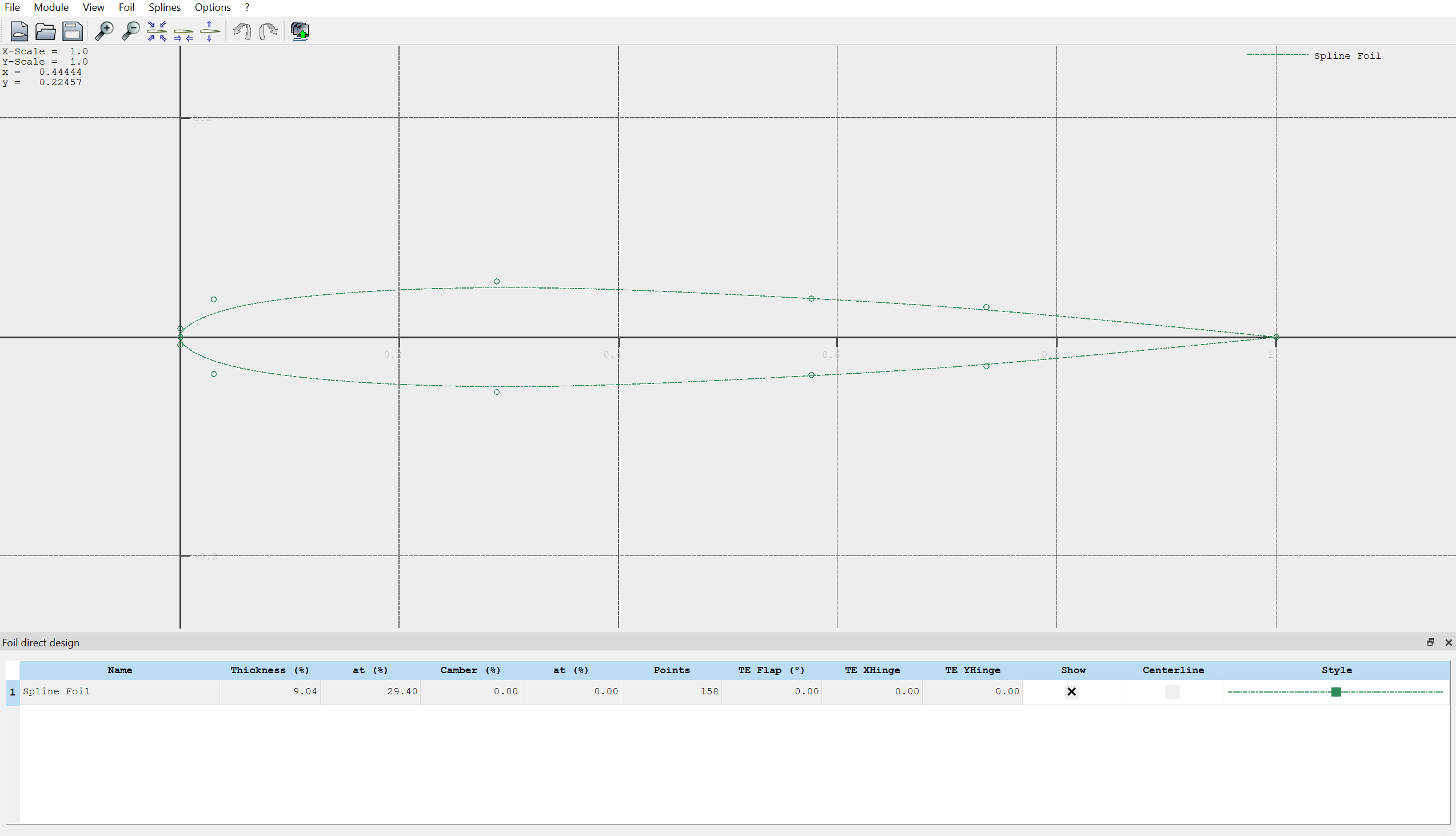
Navigate to Module -> Direct Foil Design at the top left of the screen. You should see an interface that looks like this:
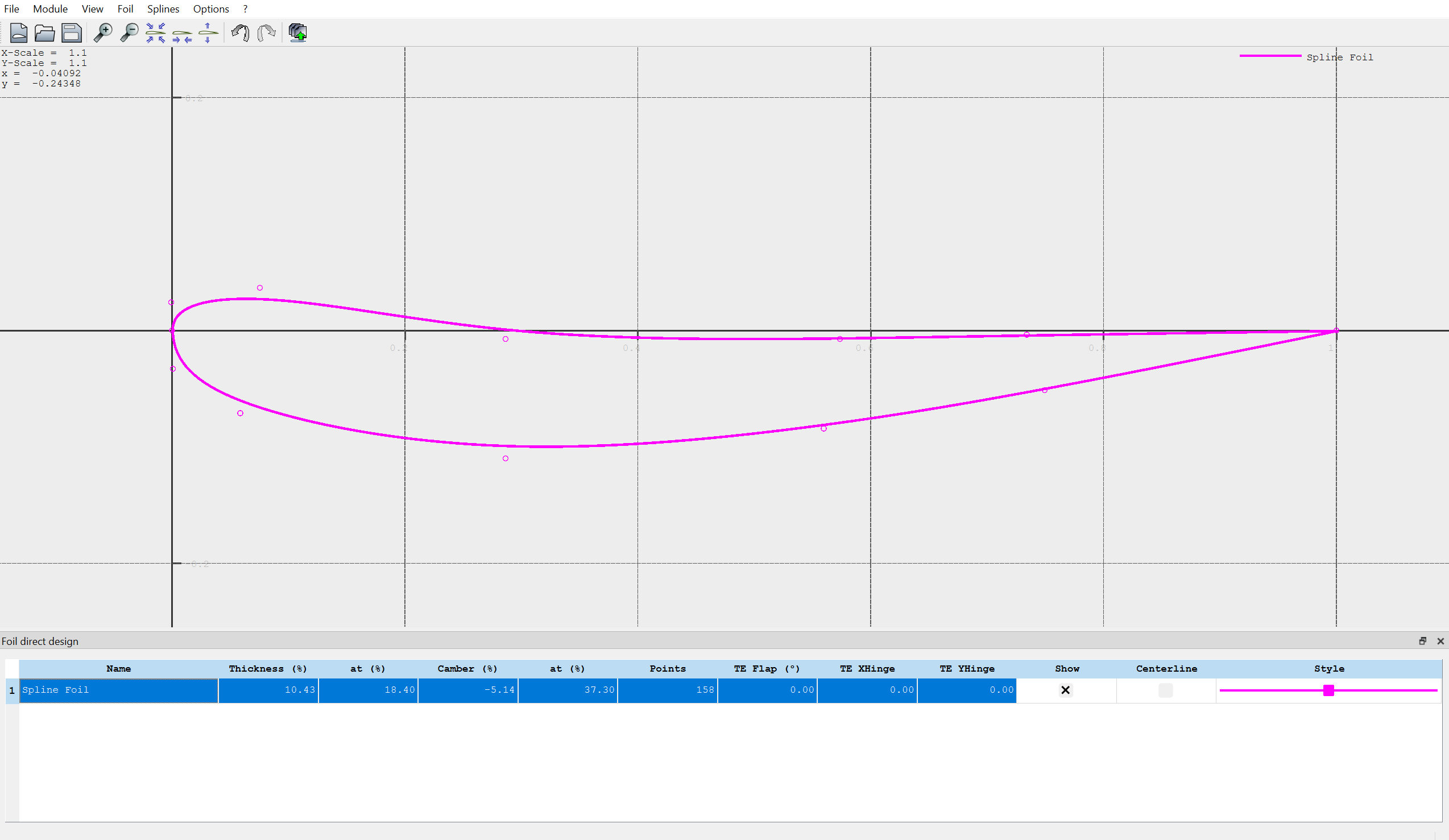
Click to drag the points you see on screen to make a new spline shape. Yes, it will likely look like a mess your first time making one. You likely barely know what a "good" airfoil is supposed to look like. That's okay! We have resources for that, and this tutorial is just to get familiar with the design procedure. Here's what mine looks like, if you want a reference:Note that you can change the appearance of your spline by clicking on the "style" tab on the table below your airfoil.
Navigate to Splines -> Store Splines as Foil in the top left. Enter a name with the naming convention (initials)_(type)_(descriptor). Type for our case is sort of ambiguous, but know that "primary", "secondary", and "tertiary" are common designations for the first, second, and third elements of a wing. They are usually abbreviated as "P", "S", and "T". Equally as valid is element 1, element 2, and element 3 which shorten to E1, E2, and E3 respectively. I named the above airfoil "JD_E3_Example".
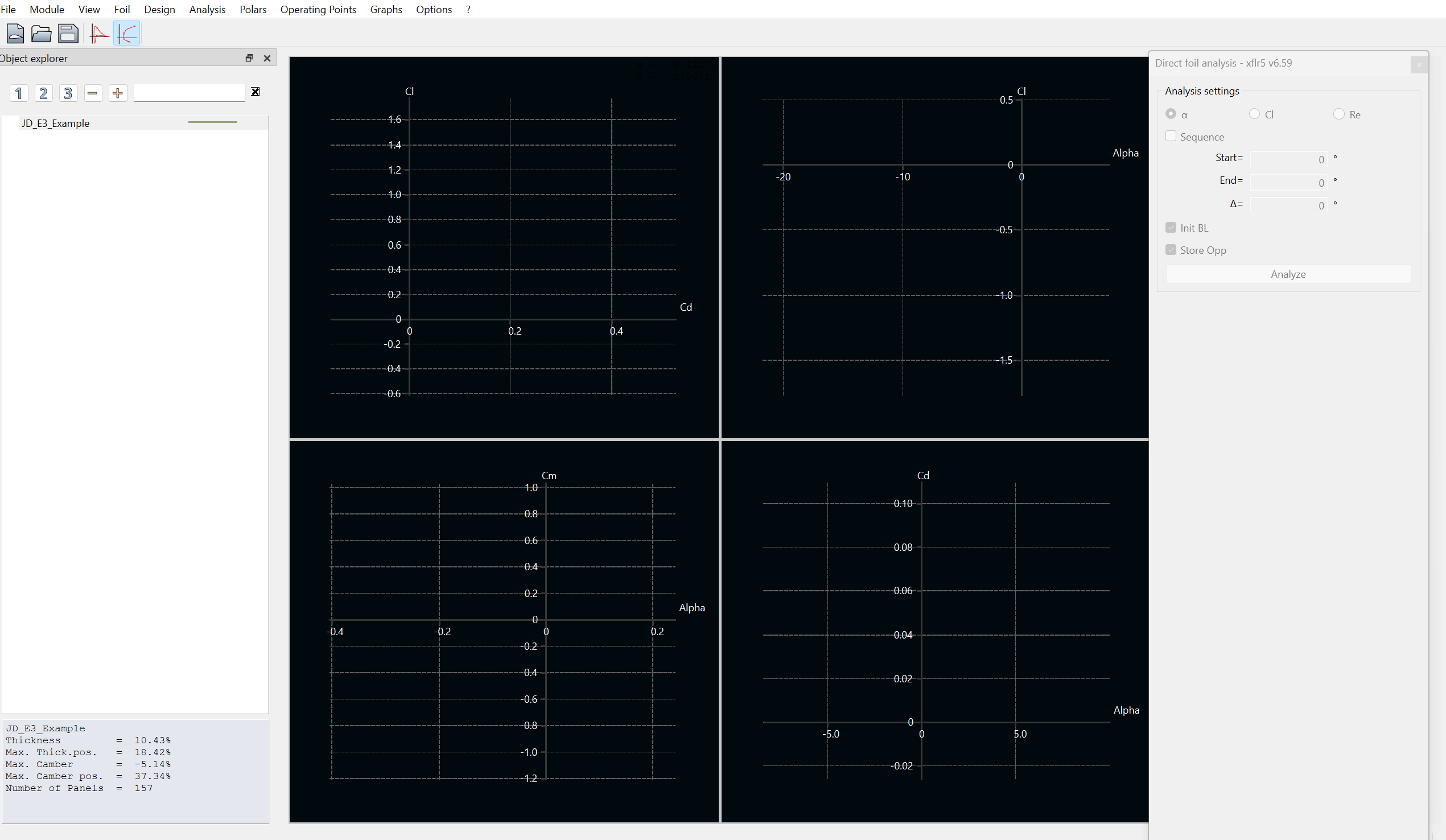
Navigate to Module -> Direct Foil Analysis. You'll see an interface that looks like this:
Navigate to Analysis -> Batch Analysis. It may be a bit confusing for those less experienced from here. Batch analysis allows us to test our airfoil at multiple angles of attack and at multiple Reynolds Numbers. The UI will look like this: First, set Min Alpha to -18 and Max Alpha to 6. This defines the range of angles of attack we simulate. Change the increment to 0.500. For Reynolds Numbers, calculate a good range of numbers between 10 and 60 mph at sea level conditions. Assume a characteristic length of 1 m. Use the 1976 Standard Atmosphere Calculator to determine dynamic viscosity and density at sea level. One of my personal favorite websites that one, love the little fishes they have at the top. Click the checkbox for Initialize BLs between polars and Store operating points. Change the number of threads such that your computer has four threads available. finally... HIT ANALYZE
Exit out of the batch analysis window. You should see the graphs populated with data like so: Now what? You just completed your first airfoil simulation! Click and drag the graphs to bring more data into view. Click the dropdown on the left hand side (in the screenshot, the row that says "JD_E3_Example". Clicking the x's will show or hide the data for a specific Reynolds Number of a specific angle of attack point.
SAVE YOUR PROJECT. I didn't, literally just as I was making the tutorial, and lost my progress.
Check-in questions before moving to the next section:
What is the general trend of Cl versus alpha? Linear? Exponential?
What is Cl or Cd anyway?
What is the trend for Cd versus alpha?
How do these relationships correlate? E.g., what is the relationship between Cl and Cd? Is there a point at which that relationship changes?
How do the trends differ for different Reynolds Numbers?
How can I improve airfoil lift? How can I reduce drag?
XFLR5 Export / Solidworks Import
Now that you've designed an airfoil and completed analysis on it, its time to take it to Solidworks. Follow the steps to obtain a generic sketch in Solidworks with your airfoil profile.
Clone a local view of "Airfoil-.DAT-Inverter" from GitHub. This section will require you to create a GitHub enterprise account with your Gatech account information. Once this account is created, message a lead asking for GitHub access. They'll need to send you an invite to join the organization. Once you're on, here's the steps to make a local view:
Open command prompt and navigate to a directory in which you want this Matlab tool (cd "C:\ahoosian45\Example_Folder\")
Run the command "git clone https://github.com/username/repo.git subfolder-name", where the URL is the URL of the repository online
Open "dat_inverter_notebook.mlx" in Matlab. This is the main live script that will take the exported .dat file from XFLR5, scale the values, and convert to .txt which is readable by Solidworks.
Lets go back to XFLR5. To export your spline, navigate to Splines -> Export Splines to File. Save the .dat file with the same name as the spline to the directiory "...Airfoil-.DAT-Inverter/input_airfoils"
Hit run on the entire "dat_inverter_notebook.mlx" script. At the end of the script, you'll see a bunch of graphs with some example airfoils and your new airfoil. If you don't see your airfoil, you did something wrong.
Open Solidworks. If you haven't already, follow this onboarding document to setup the proper GTMS Solidworks Templates